SmartList Builder
SmartList Tracking
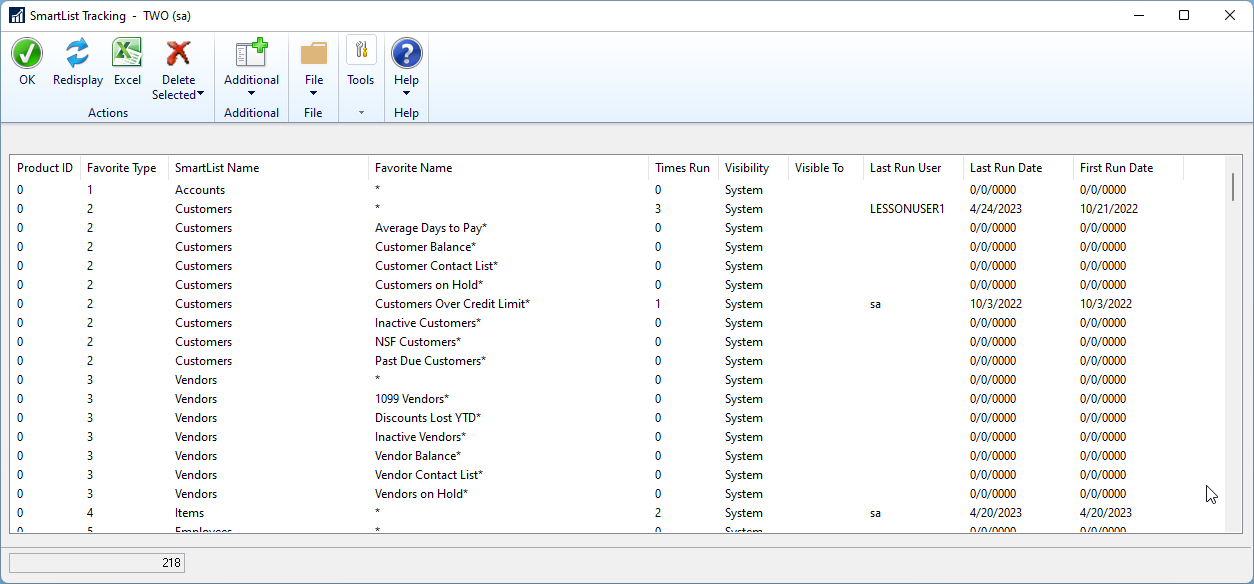
SmartList allows users to create Favorites which can quickly grow in a system. The Favorites can become obsolete after time. Knowing which ones are still used is the hard part. The SmartList Tracking feature in SmartList Builder will track all runs of each Favorite. It will track which Favorite is run as well as the last run date and the user who ran it. It will also track how many times since the feature was included in SmartList Builder the favorite has been run. It will not track each individual run of the favorite separately.
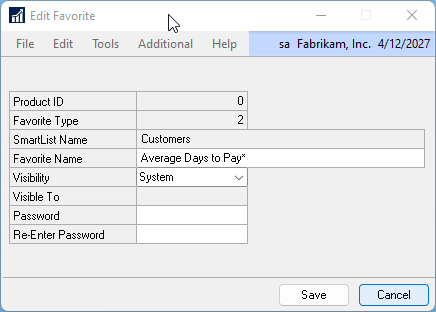
In build 18.05.0054, several features were added. From the SmartList Tracking window, the Favorite Name, Visibility and Password can be changed. The Favorite and/or the Tracking History can also be deleted.
|
SmartList Builder and Excel Report Builder lists have been setup to pull this information into SmartList and Excel. There are two different versions, SmartList Favorite Tracking will show you the same information as in the SmartList Tracking window. SmartList Favorite Tracking History will show you the same information, but at the user level. You will see the usage information for each favorite per user. The can be imported from web in the Import window under the Product of SmartList Builder. More information on importing lists can be found here. |

To View the SmartList Tracking:
| 1. | Open the SmartList Tracking window (Microsoft Dynamics GP - Tools - SmartList Builder - SmartList Tracking). |
To Edit the SmartList Favorite:
| 1. | Open the SmartList Tracking window (Microsoft Dynamics GP - Tools - SmartList Builder - SmartList Tracking). |
| 2. | Double Click the Favorite to be edited. |
| 3. | Change the desired Favorite settings. |
 |
To Edit the Export the SmartList Favorite Tracking Information:
| 1. | Open the SmartList Tracking window (Microsoft Dynamics GP - Tools - SmartList Builder - SmartList Tracking). |
| 2. | Click the Excel button. |
To Delete the SmartList Favorite:
| 1. | Open the SmartList Tracking window (Microsoft Dynamics GP - Tools - SmartList Builder - SmartList Tracking). |
| 2. | Select the SmartList Favorite(s) to be deleted. You can select multiple favorites by holding down the Shift key if they are in sequence or the Ctrl key to select random favorites. |
| 3. | Click Delete Selected and select Delete Favorite. |
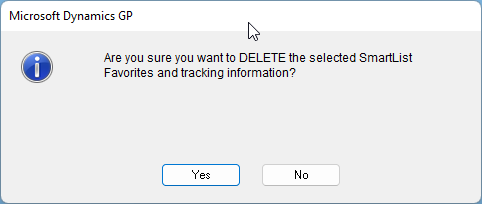
| 4. | When prompted select Yes to Delete the Favorite. This will remove the Favorite from SmartList as well as the tracking information for it. Please note that this will delete the Favorite for all users who had access to it. |
 |
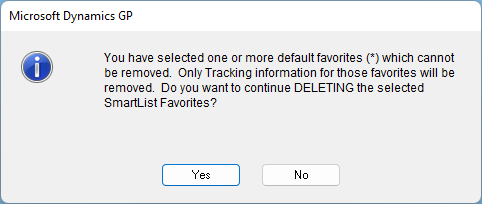
| a. | If one or more of the selected favorites are a default favorite (*), the prompt changes warning that you cannot remove default favorites and that only the tracking information for those favorites will be removed. |
 |
To Delete the SmartList Favorite Tracking Information:
| 1. | Open the SmartList Tracking window (Microsoft Dynamics GP - Tools - SmartList Builder - SmartList Tracking). |
| 2. | Select the SmartList Favorite(s) to remove the tracking information for. You can select multiple favorites by holding down the Shift key if they are in sequence or the Ctrl key to select random favorites. |
| 3. | Click Delete Selected and select Delete Tracking. |
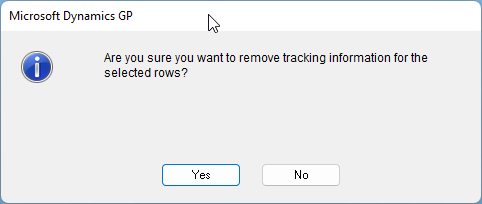
| 4. | When prompted select Yes to Delete the Tracking Information. |
 |