
SmartConnect Salesforce Connection Updates
The Salesforce connector in SmartConnect now supports OAuth authentication using JSON Web Tokens (JWT), providing a secure authentication method that aligns with Salesforce’s recommended approach.
The setup process still begins in Salesforce, where you configure the External Client App settings as usual.
The key difference is that you can now enable the JWT Bearer Flow, which allows SmartConnect to authenticate with Salesforce using a JWT instead of relying on the traditional OAuth authentication flow. This provides a more secure and streamlined authentication method for SmartConnect integrations with Salesforce.
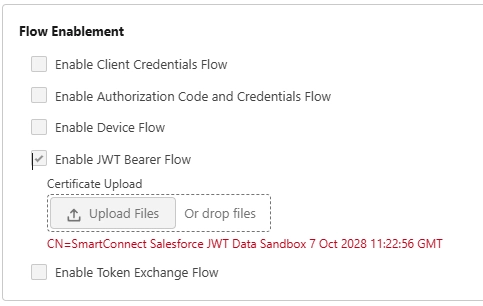
Here’s how the process works:
- Choose OAuth JWT Bearer
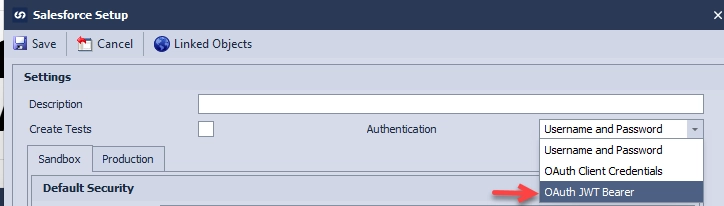
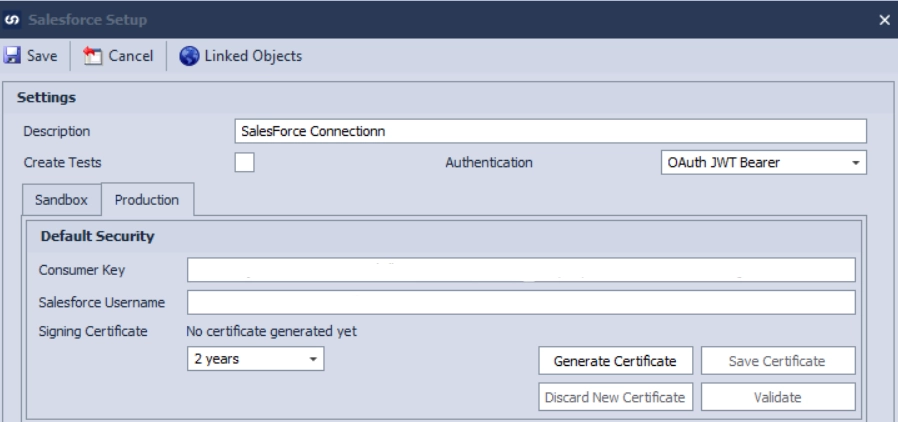
- In the Salesforce Connection → Default Security section, enter the following information:
Consumer Key: Enter the Consumer Key from your Salesforce External Client App.
Salesforce Username: Enter the Salesforce username that SmartConnect will use for authentication.
Certificate Validity: Specify how long the certificate should remain valid. The certificate can be replaced or regenerated at any time and can also be assigned to a different app when needed. - Click Generate Certificate, then save the generated certificate securely. You will need this certificate when configuring the JWT authentication in Salesforce.
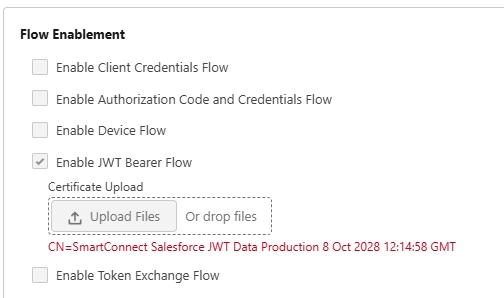
- Upload the Certificate
Upload the generated certificate to the Salesforce External Client App under the JWT settings.
After uploading the certificate, click Save to apply the changes.
- In SmartConnect, click Validate Connection to verify that the Salesforce connection is successfully authenticated with Salesforce.
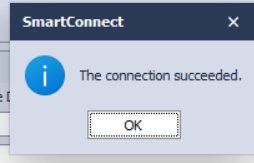
- Save the connection. SmartConnect will automatically retrieve/set and populate the Organization and Organization Type fields based on the Salesforce connection.
Troubleshoot Connection Failure
You may receive the Connection Failed error shown below. For example: error=invalid_client – invalid client credentials

If this happens, make sure the Salesforce Service URL is correct and matches the URL specified in Point 08 of the documentation.
Have a question? Please reach out to us at support@eonesolutions.com
