
In this week’s SmartConnect Office Hours, we talked about what’s new for Microsoft Dynamics NAV in the new version of SmartConnect. We covered what’s changing with the NAV connector, what that means for new and existing NAV customers, and how connecting to NAV works in the new interface.
Watch the recording below to see a demo that walks through these changes.
What’s Changing for Microsoft Dynamics NAV
SmartConnect has worked with Microsoft Dynamics NAV since 2017, when we only offered a NAV SOAP connector. We added a NAV OData connector in 2018 and have encouraged everyone who can use OData to use it ever since.
The new version of SmartConnect has no SOAP connectors at all. It works with the OData V4 web services in NAV, which is NAV 2018 and newer. This means customers on an older version of NAV should stay on SmartConnect 21 instead of migrating to the newest version, since the connector will be incompatible.
Connecting to Microsoft Dynamics NAV
In the newest version of SmartConnect, there is no separate NAV connector. Customers will have to use the Business Central connector and select one of the NAV connection types. However, we still support the same connection methods as before:
- Windows username and password
- NAV username and password
- Generic username and password
The OAuth authentication types we use for Business Central are supported as well.
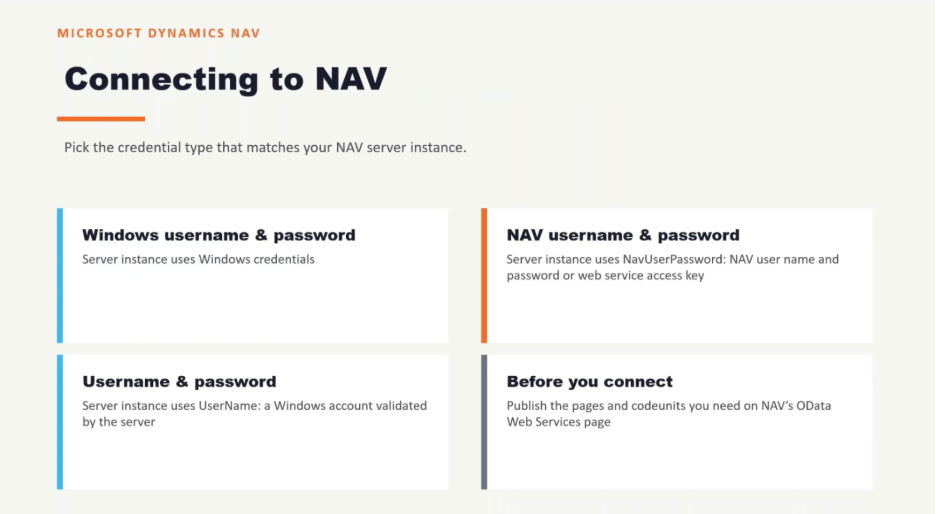
To set up the connection, you enter the URL of your NAV OData web services, choose your credential type, and set a default company for the new integrations. Because NAV is self-hosted, the connection also has a longer timeout option. The default timeout is two minutes, so if your API service is slower or you regularly pull a few thousand customers or orders at a time, we encourage you to select the longer timeout.
Writing Data to Microsoft Dynamics NAV
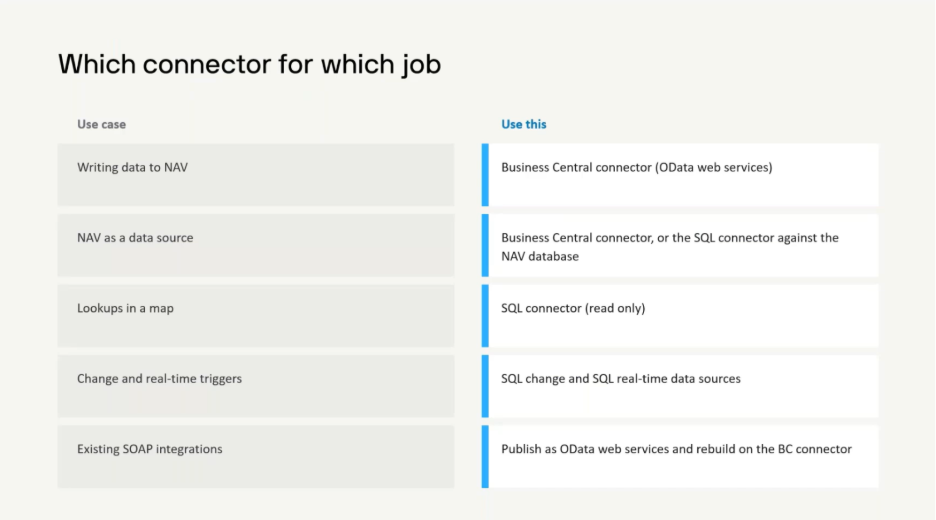
We recommend using the Business Central connector to write data to NAV because it keeps all of the business logic that is built into the NAV APIs. On the back end, the Business Central and NAV APIs are the same. The Business Central connector also supports some of the Business Central features that NAV did not offer, and it can still do everything NAV 2018 could.
One thing to note is that the new version of SmartConnect can only connect to OData V4 web services. To work with a code unit or a bound action in NAV, you will need to wrap it in an API page.
Reading Data from Microsoft Dynamics NAV
When NAV is your data source, you have two options:
- The Business Central connector can pull any of your OData web services.
- The SQL connector can read directly from your NAV Database.
Both options are also available in SmartConnect 21 and smartconnect.com, so your existing source setups can continue as is.
The NAV web services can be heavy on the server, and a server that is not strong enough to run the NAV UI and the NAV APIs at the same time can slow your integrations down. A read-only SQL connection usually performs better and can also handle tasks an API page can’t, such as complex pivots, unpivots, and unions. Lookups work the same way, through either an API page or the SQL connector in read-only mode.
There are no dedicated change or real-time data sources for NAV. Since NAV runs in your own environment, you can use the SQL connector to set up change and real-time data sources instead. SmartConnect creates a change tracking table for you without any customization. It either pushes changes to a SmartConnect webhook to run in real time, or it adds them to the change table, which you process on a schedule. Because every request to a self-hosted server adds load, we recommend incremental sources instead of pulling a full list each time.
Moving Existing SOAP Integrations
If you use SmartConnect with NAV today through OData, it will continue to work. However, integrations built on the older SOAP connection cannot be used in the new version. To move them, you will need to publish those pages as OData services and then manually rebuild the integrations with the Business Central connector.
We don’t expect this to impact a large number of customers, but feel free to reach out to our team if you have any questions on how this will affect your current NAV integration.
Sign up for Upcoming SmartConnect Office Hours
If you haven’t signed up for SmartConnect Office Hours and want to learn more about other SmartConnect updates, it’s not too late. Our next session is:
- December 3: FTP Servers in SmartConnect

