
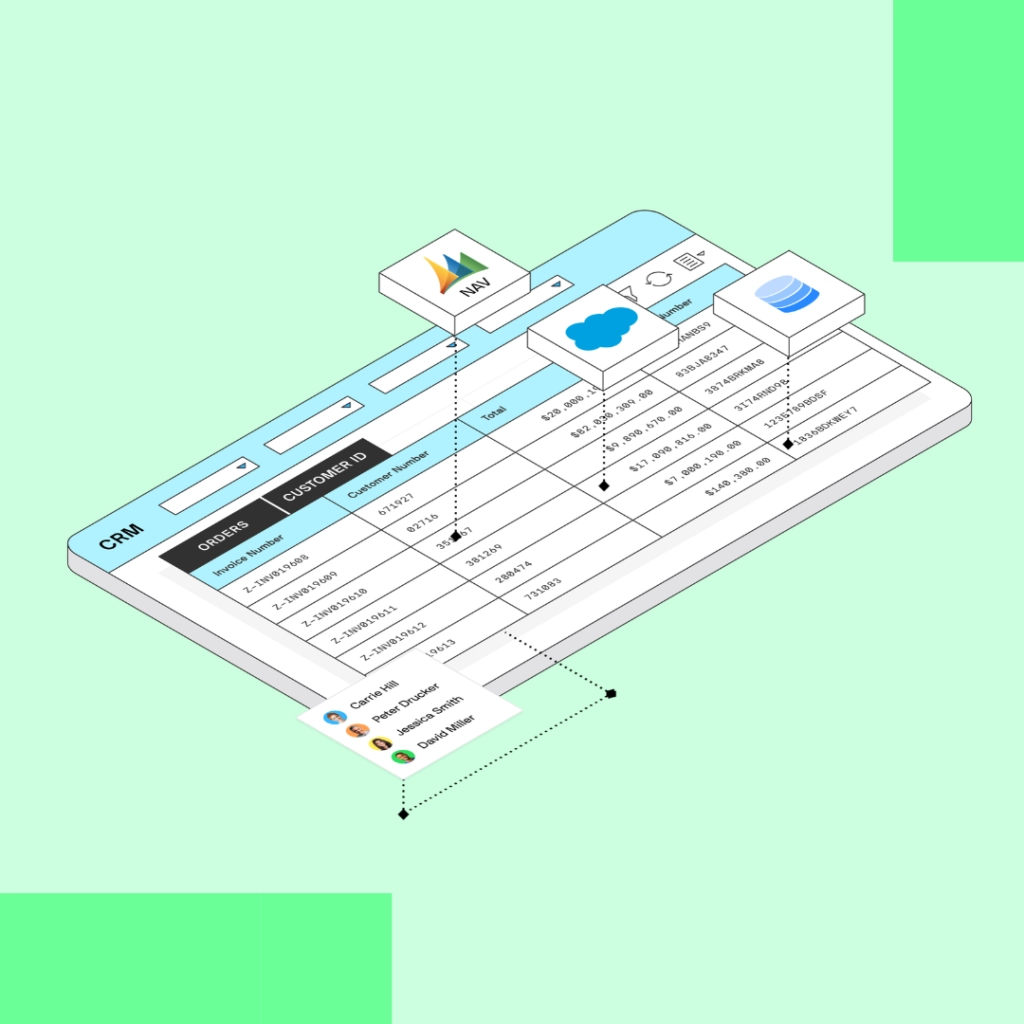
Your business data rarely lives in one place, and you work better when you have visibility into both your Dynamics 365 Business Central data and the rest of your systems. Without data integration, looking for an order means finding the invoice in Business Central, but then needing to switch tabs and search through support tickets, contract terms, and account history. That means you’re searching through four different systems to find the answers you need.
Comparing Embedding Data vs. Traditional Integration
Integrating data from other systems or applications gives your team more visibility, cuts down on manual re-entry, and helps workflows run more efficiently. How you choose to integrate depends on your needs. You can physically move data from one source to another, or you could embed data as a window into that system. Both traditional and virtual integration can support your workflow process.
Syncing Data Between Systems with Traditional Integration
Traditional integration allows you to sync data between D365 Business Central and third-party systems. Records are copied from one system to another, usually on a schedule or whenever something changes, so each system has its own copy.
This approach makes sense when data needs to live in Business Central itself, like when you want to report on it or build processes around it. The tradeoff is that the data has to be mapped between systems, and the copies need to be kept in sync with each other.
If you decide traditional integration is the way you want to go, SmartConnect makes it easy. Build and monitor integrations with drag-and-drop mapping that makes it simple to manipulate data. With SmartConnect’s multi-data source support, you can bring in data from all your favorite sources.
Embedding Data with Virtual Integration
Sometimes, virtual integration is a better choice. Instead of copying data into Business Central, you embed it. The data stays where it is, and you view it from the system you already work in.
With Popdock’s virtual integration, you can embed external data inside Business Central or embed Business Central data inside a different system. Either way, you see everything you need without leaving the system you’re working in, which means no more tab-hopping to find the right answers.
Embedding data with virtual integration also allows you to save on licensing costs, since not everyone will need direct access to Business Central if that data already shows up within the system they use every day.
Ask Questions of Your Data with AI Integration
While traditional integration moves data between systems, and virtual integration displays it inside a system, AI integration lets you ask a question and get the answer no matter where the data lives. AI integration connects your business data to your AI client, so you can ask questions about your business in natural language. Instead of searching through the data yourself, you can get answers served to you in real time.
The biggest question surrounding connecting AI to business data focuses on security; that’s where PopdockAI comes in. PopdockAI sits between your AI and your business data, controlling what your AI can see and do, with a built-in audit trail that gives you visibility into everything your AI touched.
What to Do Before Starting an Integration Project
No matter which D365 Business Central integration path you choose, it’s important to keep a few things in mind:
- Make sure your master data is clean: Master data is the core information your business runs on, like customers, vendors, and items. If that data is inconsistent, integration will carry it into every system it touches. Before you connect anything, look for duplicates, agree on how things should be named, and decide who should own data quality.
- Understand your setup: Know which systems hold what data and determine where your source of truth lives. Without that decision, two teams can update the same customer address in two different places with no clear answer on which is correct. Map how data moves between systems, including which fields flow in what direction, and which are view-only.
- Plan for the future: Integrations need maintenance even after they go live. Systems get updated, processes change, and new fields get added, so an integration can slowly get worse over time. You should assign an owner, decide how you’ll know when something stops working, and review the integration whenever the connected systems change.
Which Approach is Right for You?
When it comes to integration, you don’t just have to choose one option.
- Traditional integration is a good fit when data needs to live in Business Central.
- Virtual integration is the best option when you want to see data in one place, without physically copying it there.
- AI integration is a great option when you want answers from across your systems without hunting for them yourself.
Want to learn more? Contact our team to explore the eOne iPaaS and discover how we can help with Dynamics 365 Business Central integration.


